HTML 5
Training Course
- Started programming in 2004, started Web Dev in 2006.
Exercise
- Create a fictional website as if it was intended for real-world deployment
- AI chatbots can be used to generate ideas (restaurant, fitness, gaming websites, etc.) and learn or solve issues

0. Introduction
- HTML, short for HyperText Markup Language, is a markup language (and not a programming language!) used to structure and present content on a web page, commonly referred to as a document.
- It relies on a wide range of tags and attributes to display text, links, images, and other elements.
- Even though it might look like a simple language at first glance, it still has some hidden features (I don’t even use every feature of HTML myself 😉) and might be more complex if you truly want to optimize the SEO.
Introduction
Web development is one of the most popular fields in technology alongside Artificial Intelligence and software development.
For me, web development is a form of software development, since many apps are built for web browsers with web dev tools and frameworks. Native apps are less useful, unless performance is critical (like in video games 😉).
Besides, core principles like coding practices and paradigms remain consistent across both!
Thus, in my opinion, it is essential for any web developer to understand theoretical aspects of computer programming, regardless of whether they are specialized in front end, back end, or full stack.
For that, C++ might be the best language to grasp most programming concepts, or Python as it might be easier to start with.
Web Development Layers
Web development splits into two main areas:
- Front-End: What users see in the browser (HTML for structure, CSSS for styling, JavaScript for interactivity). Astro is great for fast front-end sites.
- Back-End: Server-side logic (e.g., databases, APIs). Next.js can handle back-end tasks with API routes.
Full-Stack is actually combining both layers, like building a Next.js app with a front-end UI and back-end data fetching.
★ Web Dev ~ HTML 5
This document is focused on the basics of Web Development & HTML and will introduce to the following concepts:
- Web Development Layers: Frontend • Backend • Fullstack
- 3 Approaches to website creation: Website Builders • CMS • Technical Tools (Languages, Programming Languages, Frameworks, etc.).
- Website Hosting: Website Hosting platforms • FTP Client
- Web Dev Environment: Text-Editor • JavaScript Runtime Environment
- Theory: Client-Server Architecture
-
HTML Basics
Besides, I focus on HTML within the Astro framework, which offers a nearly identical experience, aside from a few Astro-specific tags 😉.
3 Ways of making websites
I can highlight 3 main approaches to website creation: website builders, CMS, and technical tools.
Website Builders (Wix, Squarespace, Shopify, Weebly…)
Content Management Systems/ CMS (WordPress, Joomla, Drupal…)
Technical Tools such as:
- languages (HTML, SCSS…)
- programming languages (JavaScript, TypeScript, PHP, Python, Java…),
- frameworks (Astro, Next.js…)

Website Builders
Website Builders are user-friendly, no-code platforms designed for creating websites without technical skills, these platforms offer drag-and-drop interfaces and pre-made templates for easy customization.
Examples:
Wix •
Squarespace •
Shopify •
Weebly

Content Management Systems
Content Management Systems (CMS) offer more advanced customization options than website builders. While basic site management can be done with minimal technical knowledge, creating custom themes or plugins may require some programming skills.
Yet, fine-tuning performance or creating a very unique website is very difficult (almost impossible).
Examples: WordPress, Joomla, and Drupal

Technical Tools for Devs
Highly technical tools, such as markup languages (HTML), styling languages (CSS), programming languages (SASS, JavaScript, TypeScript), or frameworks (Astro), all of which require technical expertise.
Most professional web development is framework-oriented (Astro, Next.js, etc.). Making a website without framework is almost useless, even for landing pages.
Website Hosting
- Website hosting: I’m focused on creating website, not the hosting aspect, though we can use Vercel (hobby plan) or Github Pages, suitable for personal projects and similar uses.
- SFTP/ FTP Client: How to use FTP clients such as WinSCP, which are very practical tools for easily updating your website. FilleZilla might be infected with adware or else. Don’t use it.
Getting Started!
Dev Environment
- The following is needed to build websites with Astro or Next.js:
- On Visual Studio Code, install these extensions: Astro (it’s the extension, not the framework), Prettier, VSCode Icons
Can’t run Node.js
⚠️ Use an online Virtual Environment if Astro/Node doesn’t work (no install, no hassle): https://codesandbox.io/p/sandbox/astro-j1qiqf
Or use a GitHub codespaces To create & run Astro projects from a browser (for testing purposes)
Theory behind Web Dev
Client-Server Architecture
★ Web Browsers
Shortcuts
Switch to the next tab: Ctrl + Tab or Ctrl + Page Down
Focus the address bar: Ctrl + L or Alt + D
Bookmark the current page: Ctrl + D
1. Syntax
HTML uses tags to define the structure and content of a webpage. Here’s an example using two fundamental HTML tags:
<p> and
<img>.
Some tags include attributes (src, alt, id, class, etc.) that modify their behavior or define how they’re rendered in the browser.
Global attributes (id, class, style…) can be used on most HTML elements.
    <p id="intro" class="highlight">
        Welcome to my webpage! <br />
        This is a paragraph element.
    </p>

    <img src="/Assets/Car-01.jpg" alt="My new car" class="vehicles" width="300" />
Tags are divided into two primary categories: container tags and self-closing tags.
Container tags (aka non-void elements) use paired tags with opening and closing tag like <p> </p>.
They encapsulate child nodes, which may include text, other elements, or inline content.
self-closing tags (also called void elements) are syntactically complete with a single tag and do not wrap content. They are used for media, metadata, or form controls, like <img /> <br /> <input />. The trailing slash (/) in self-closing tags is optional in HTML5 and primarily retained for XHTML compatibility (it’s however mandatory in JSX/ TSX).
1.3. HTML Conventions
The HTML standards are maintained by the W3C (World Wide Web Consortium). Each popular language (programming or non-programming languae) is usually standardized.
Case Sensitivity
HTML is case-insensitive, but lowercase is the recommended convention by the W3C. Frameworks like Astro or variant like JSX/ TSX enforce case-sensitivity, especially in component names.
Indentation
Indentation improves visual hierarchy. It’s not required by the browser, but good for readability. The Prettier extension can help in VSCode.
Validator
If you need to validate your HTML code, you can use the official W3C Markup Validation Service, which is a great tool to check if your code is correct and follows the standards.
1.4. HTML Quick History
HTML 1.0
First released in November 1993, authored by Tim Berners-Lee, and laid the foundation for the World Wide Web.
HTML 2.0
Published in November 1995 by the IETF, it standardized core features and added form support.
HTML 3.2
Released in January 1997, introducing scripting with JavaScript, tables, and styles.
HTML 4.01
Finalized in December 1999, it emphasized structure, accessibility, and introduced strict/loose DOCTYPEs.
HTML 5
Officially recommended in October 2014, it brought semantic tags, native media support, and APIs for modern web apps.
HTML 5.2
Published in December 2017 by the W3C, HTML 5.2 refined semantic elements, improved accessibility, and deprecated outdated features like keygen
2. HTML Document
Document Structure
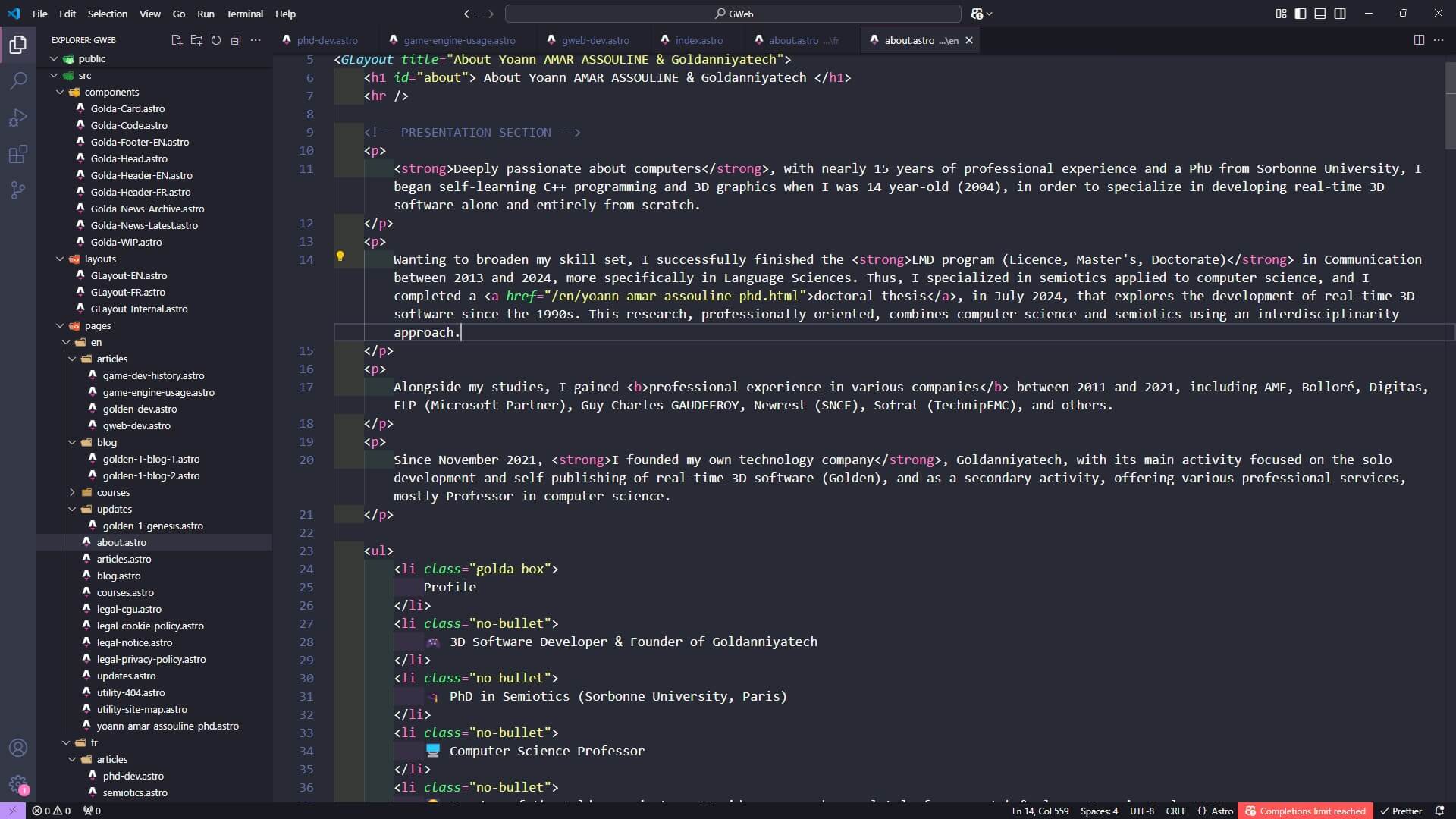
Each HTML document is a file with the .html (or .htm) extension, and most hosting providers require an index.html file at the root of your project folder.
These files are always divided into two main parts:
<head>: Includes metadata, links to CSS for styling, JavaScript for interactivity, the favicon, and information on how the page appears when shared on social media.
<body>: Contains the visible content of a webpage.
<!DOCTYPE html>
<html lang="en">
    <head>
        <!-- Metadata  -->
    </head>

    <body>
        <!-- The visible content of the webpage -->
    </body>
</html>
2.1. Head Section
The <head> section is mostly used for metadata, which includes essential information for search engines (the so-called SEO, which we’ll discuss later) and accessibility, but they don’t appear on the page itself. We say that these information are outside the viewport, i.e., the visible content in the browser window. More specifically, it contains the following elements:
- Character Encoding: The character encoding of the document, usually
UTF-8, which supports most characters.
- Favicon: The small icon that appears on your browser tab (on my website, it’s my company logo).
- Page Title: The title displayed on the browser tab.
- Social Media Tags (Optional): Meta tags that define how your website appears when shared on social media platforms.
<head>
    <!-- Metadata  -->
    <meta charset="UTF-8">
    <meta name="viewport" content="width=device-width, initial-scale=1.0">
    <!-- Metadata for SEO -->
    <meta name="description" content="A simple webpage">
    <meta name="author" content="Your Name">
    <!-- Title of the page displayed on the browser tab -->
    <title>Simple Webpage Example</title>
    <!-- Favicon -->
    <link rel="icon" href="/path/to/favicon.ico">
    <!-- Link to external CSS file -->
    <link rel="stylesheet" href="styles.css">
</head>
2.2. Body Section
The <body> contains all the visible content of the webpage that users interact with, such as text, images, videos, audio, links (or hyperlinks), and other media elements.
Note that comments in HTML are used to explain the code and are not displayed on the webpage. They are written between <!-- and -->.
<body>
    <!-- A Heading 1 (h1) for the page/ document title -->
    <h1>Welcome to my Website </h1>
    <p>
        This is a useful paragraph for my website!
    </p>
    <img src="path/to/image.jpg" alt="Image Description">
    <!-- An Anchor or link to another webpage -->
    <a href="https://www.goldaniatech.com/">Visit Example</a>
</body>
2.3. Sections & Semantic HTML
Semantic HTML is a way of writing HTML that emphasizes the meaning of the content rather than its appearance. This helps browsers (and search engines) improve accessibility and SEO.
For instance, using <header> for the top section of a page or <article> for a standalone piece of content makes it clear to robots what those sections are for.
In fact, semantic tags are actually helping to improve the structure and accessibility of a page, as well as the so-called SEO. A good example is the tag for having bold text, which is <strong> for the semantic tag and <b> for the non-semantic one.
<!-- Document Header containing the navigation menu and, sometimes, the title -->
<header>
    <nav> </nav>
    <h1>Gold Website</h1>
</header>

<main>
    <h2> Game Preview </h2>
</main>

<footer>
</footer>
3. Basic Text
HTML provides a variety of text elements that help structure and format content on a webpage. The most common ones include headings, from <h1> to <h6>, that define different levels of importance for titles and subtitles, and paragraphs <p> for grouping blocks of text.
3.1. Headings & Paragraphs
The Headings define titles and subtitles, ranging from <h1> to <h6>. Only one <h1> tag should be used per HTML page since it represents the main title of the document. Search engines and screen readers rely on headings to understand the page structure, making them essential for SEO and accessibility!
❌ Avoid using headings just for styling! They are meant to define the structure of the content, not its appearance! Use CSS classes for styling instead. On my stylesheets, I often add classes to the heading tags to style them (example below).
<h1> Vehicles </h1>

<h2> Cars </h2>
<h3> Sport Cars </h3>
<h2> Trucks </h2>

<style>
/* Using both the h1 tag and the .heading-one class */
h1, .heading-one {
    font-family: "Arial", sans-serif;
    color: crimson;
}
</style>
Paragraphs are used to group blocks of text together. They are defined by the <p> tag and are often used to separate different sections of a webpage.
If you’re making a template, please avoid lorem ipsum text and use real text instead, especially with today’s AI tools, as generating real text is simple.
<p>
    This is a paragraph with semantic tags for <strong>bold</strong> and <em>italic</em>!
</p>
<p>
    This is a second paragraph.
</p>
❌ Avoid using the <p> tag inside other block-level elements like <h1>, <div>, or <li>. Besides, don’t use <br> to create space between paragraphs; use CSS instead.
- Lists: We have
<ul> for unordered lists, <ol> for ordered lists, and <dl> for description lists — a less common list type useful for glossaries.
- Links: The
<a> tag, which stands for anchor, allows users to navigate between pages or access external resources.
- Line Break: The
<br /> tag is useful for creating a line break anywhere on a page or within a paragraph, without starting a new one.
- Words
- Bold:
<b> and <strong>
- Italic:
<em> and <i>
- Citations & Quotations
- Cite sources with
<cite>
- Insert quotations using
<blockquote> for block-level and <q> for inline quotes.
- Subscripts & Superscripts to easily write chemical formulas or mathematical expressions
<sub> → H2O<sup> → (a + b)2 = a2 + 2ab + b2
- Abbreviations & Definitions
<abbr> for abbreviations<dfn> for definitions
- Keyboard: The
<kbd> tag is used to denote user keyboard input, typically displayed in a monospace font and styled to resemble actual keyboard keys! Example: <kbd>Ctrl</kbd> + <kbd>A</kbd>
Some developers combine multiple key presses inside a single <kbd> tag, while others separate them. I prefer the separate style — but you do you 😉!
HTML offers a range of classic yet very useful media element tags, such as images, audio, and video. While there are some tags I rarely (i.e., never) use, such as <svg> and <canvas>, they are still worth mentioning here, as they can come in handy in some use-case scenarios! Note that I will cover assets optimization in another article (that I will link here), but for now, let’s focus on the tags themselves.
4.1. Images
There are several ways to embed images in web pages, with the most common being the <img /> tag. For better responsiveness and serving different images based on screen size, you can use the <picture> tag. As mentioned earlier, you can use the <svg> tag for vector-based images or the <canvas> tag, which provides a drawable region for creating dynamic graphics
<!-- The self-closing image (img) tag with two attributes -->
<img src="Assets/cars/my-car.jpg" alt="This is my car" />

<!-- The picture tag for responsive images -->
<picture>
    <source srcset="Assets/cars/my-car.webp" type="image/webp">
    <source srcset="Assets/cars/my-car.jpg" type="image/jpeg">
    <img src="Assets/cars/my-car.jpg" alt="This is my car">
</picture>
4.2. Video
To embed video in any page, use the <video> tag. It supports formats like MP4, WebM, and OGG.
💡 There’s no native equivalent to the <picture> tag for video. While JavaScript or TypeScript solutions exist to load different videos dynamically (e.g. smaller versions for mobile), they’re never quite as seamless or effective as the <picture> tag for images.
4.3. Audio
The <audio> tag is used to embed audio content in web pages, supporting various audio formats like MP3, OGG, and WAV.
4.4. Embedded Content
Using the <iframe> tag can be helpful for embedding external content, such as videos from YouTube or maps from Google Maps.
⚠️ Note: It can also be used to include an HTML page inside another HTML page, but this practice is mostly avoided today, as it can make the website feel outdated.
4.5. 3D Models
If you’re wondering how some websites can display 3D graphics and even video games, it’s most of the time with the <canvas> tag, which enables rendering 3D graphics! Most people would use a JavaScript rendering engine such as three.js or babylon.js.
This includes exporting 3D applications from the Unity engine or Godot, for example. As I am not interested in displaying 3D models or exporting games for web browsers, I won’t be able to give much information. Besides, since I exclusively use Unreal Engine, it’s currently not possible to export any games or apps to HTML5, as that was removed after Unreal Engine 4.24, as far as I know, although Pixel Streaming might be an option.
5. Accessibility & SEO
Two very important and often combined factors are accessibility and SEO (Search Engine Optimization), which can dramatically impact a website’s effectiveness and online rank.
5.1. Accessibility Principles
- Semantic tags should be used as much as possible, and when the context allows for it.
- Keyboard should be usable for all page functions, without requiring the use of a mouse.
- Useful Links
- Google SEO Starter Guide