★ Unreal Engine 5
- Training course on Unreal Engine subdivided into 3 parts: UnrealEd, Blueprints, and Unreal C++
Unreal Engine Overview
- Unreal Engine is a general-purpose game engine primarily used for video games, but also film production, architecture visualization, simulation, and virtual production.
- Originally developed in the late 1990s by Epic Games for FPS titles, it evolved into one of the industry’s most widely used engines.
- UE5 focuses heavily on high-end rendering, scalability, open-world workflows, and real-time content creation.

Getting Started!
- Download Unreal Engine 5 from the Epic Games Launcher
- It’s possible to build Unreal from its source code, but it’s only useful for modifying the engine or getting the latest version.
- Check the Unreal Documentation
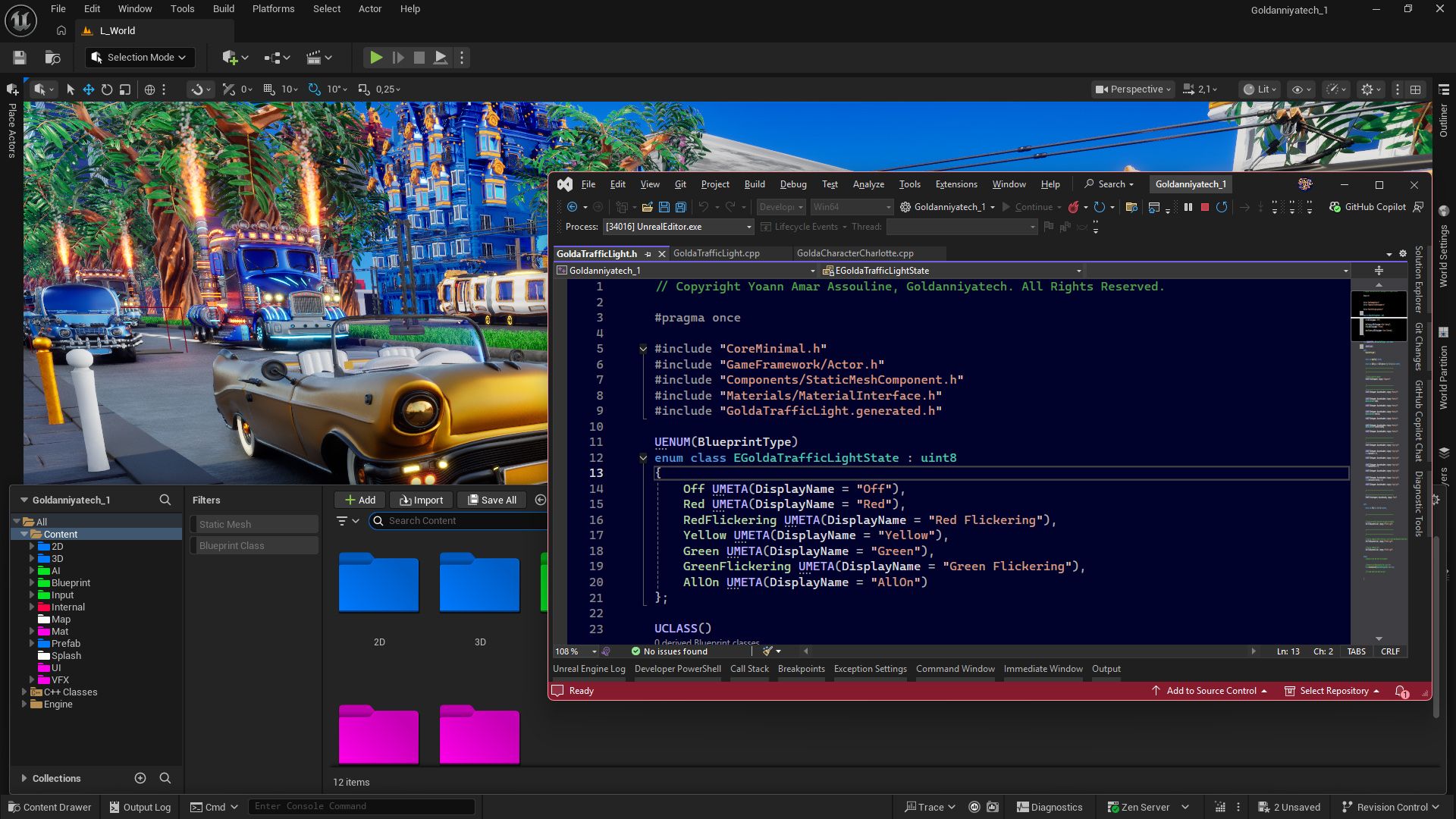
Visual Studio 2022
Technical Specifications
Core Systems
- Rendering pipeline (Lumen, Nanite, post-processing, materials)
- Gameplay framework (Actors, Components, Pawns, Controllers, Game Modes)
- Physics and collision systems
- Animation framework and state machines
- Audio engine
- UI systems (UMG/Slate)
- Networking and replication
- AI systems (Behavior Trees, EQS, Navigation)
- AI Assistant can be enabled (Edit > Plugins > AI Assistant) but it can’t analyze current projects or files (Blueprints, assets, etc.)
Licensing
- Unreal Engine is source-available, not open source
- Developers can access and modify engine source code through GitHub
- Epic Games uses a royalty-based licensing model for commercial games
Unreal Engine History
- Unreal development started in 1995 by Tim SWEENEY and had its first public release in 1998, alongside the first-person shooter Unreal.
Unreal Engine 5
- Unreal Engine 5 Early Access was published in May 2021, 6 months after PS5 and Xbox Series
- Unreal Engine 5.0 was released in April 2022
The next version Unreal Engine 5.8 will support Visual Studio 2026.
UnrealEd
- UnrealEd is Unreal Engine’s integrated editor, probably named after DoomEd from the DOOM Engine and inspired by Turbo Pascal and Maya.
- Although UnrealEd existed since UE 1, most game engines at that time didn’t have full-fledged editor. Some had a Level Editor, but not an entire set of visual tools.
Main Shortcuts
- G → Toggle Game View
- Alt + P → Play in Editor (PIE)
- Shift + Escape → Stop Playing in Editor
- Ctrl + Alt + Left Click → Box Select
Build Rules
- Full Rebuild should be enabled only when releasing a new version on Steam/ Epic.
Templates
- Unreal comes with several templates (Third-Person, First-Person…).
- Possible to start a project with a template or add any existing template/ the Starter Content to current project from the Content Browser, by clicking Add Content on the top.
In previous versions of the engine, BSP were used to create and edit basic geometric shapes, but became obsolete and might be removed by Epic in the future (no reliable source on this). Since UE5, the modeling Mode was introduced for better work on block-out levels, avoid round-trips to DCC, and for tweaking external assets, according to the Unreal Fest 2022, and should be the only way to create block-out levels.
Project Settings
- Project name should only contain letters (“a-z” and “A-Z”), numbers (“0-9”), dots (“.”) and underscores (“_”). It should never start with a number.
- It is almost impossible to rename C++ projects.
- Some games have their binaries as “ShooterGame” because development went too far to rename it without loosing hours/days to reorganize things
- Disable Enable viewport static mesh instance selection in Project Settings, as it’s annoying to select instances instead of the entire Blueprint.
- Project Thumbnail: a 192x192 .png file
- Icon: Project icon is a 256x256 .ico file for Windows, .icns in MacOS, or .png for Linux.
- Splash Screen is 640x740 like Fortnite
Editor Settings
- Keyboard Shortcuts: change the Open Console Command Box shortcut since the default tilde (~) doesn’t work on AZERTY keyborards. I now use the ù key.
Audio
- MetaSounds is a fully procedural high-performance audio system (or engine) designed to replace Sound Cues, the UE4 audio system which will eventually be deprecated.
- MetaSounds gives complete control over a DSP (Digital Signal Processing) graph.
- MetaSound Graph Editor can be used to randomize elements. We can use Random (Float) to put in the Pitch Shift. We can also use Random Get (WaveAsset: Array) to play multiple random sounds.
Chaos Physics Engine
TEXT
Sequencer
- Sequencer is a powerful non-linear editing suite and the primary tool used to make in-game cinematic sequences.
- It is done by making Level Sequences, adding tracks, and creating keyframes on a timeline to modify objects, characters, and cameras.
- Introduced in 4.12 and replaced the Matinee cinematic tool from UE4, deprecated since UE 4.18 and no longer accessible since UE 4.24 (source).
Unreal Sequencer is comprised of two parts:
- The Level Sequence Asset, located in the Content Browser and containing Sequencer data (tracks, cameras, keyframes, animations). This must be assigned to the Level Sequence Actor.
- The Level Sequence Actor, inside the Level 3D space and merely a container for the Level Sequence Asset.
Build Config & Tragets
5 custom build methods: Debug, DebugGame, Development, Test, Shipping
- Debug: UnrealEd and the Game are unoptimized
- DebugGame: Game is unoptimized but Unreal Editor is optimized
- Development: Default config; most of the code optimized
- Test: Most optimizations; console commands
- Shipping: fully optimized.
#if WITH_EDITOR
#endif
Assets
Section Overview
- Assets: Static Meshes • Skeletal Meshes
- Technologies: Nanite

Assets Overview
- Assets are managed through the Content Browser
- Unreal converts imported content into
.uasset files
- Common imported asset types include Static Meshes, Skeletal Meshes, Materials, Textures, Animations, and Audio
- For Static & Skeletal Meshes, I only focus on the
FBX file format imported from Blender.
Static Meshes
- Used for non-deforming geometry
- Common for environments, props, architecture, modular kits
- Can use Nanite for high-poly rendering
Skeletal Meshes
- Skeletal Meshes are made of two parts: the mesh (polygons) and a set of interconnected bones.
- When importing a Skeletal Mesh in Unreal, it comes in three parts:
- the Skeletal Mesh (geometry),
- the Skeleton (bone hierarchy),
- the Physics Asset for collision/ragdolls
Nanite Meshes
- Virtualized geometry system for rendering very high-poly meshes efficiently
- Primarily designed for static geometry
- Reduces manual LOD workflows
- Some transparency and masking workflows have limitations
- Nanite Assemblies, introduced in 5.7, is for animated trees (skeletal meshes animations) fully in 3D.
- 16 million instances can be displayed & stream in a scene (only instances that are currently displayed are counted).
This is a hard-coded nanite limit.
Shadow Issue
- An ugly shadow issue might appear with some meshes. Remove it temporarily with the following console command:
r.RayTracing.Shadows.EnableTwoSidedGeometry 0
It’s possible to add this inside the DefaultEngine.ini as well:
[SystemSettings]
r.RayTracing.Shadows.EnableTwoSidedGeometry=0
Low Resolution Mesh Issue
- Meshes displayed in a very low resolution are meshes with materials with non-virtual textures.
- Meshes with transparency are not displayed correctly.
- Besides, meshes with holes inside are not displayed correctly
Materials, Shaders & Textures
Materials Overview
Materials
- Materials define the surface properties of objects, such as color, reflectivity, roughness, transparency, and more.
- They combine textures and parameters to tell the engine how surfaces should interact with light, and are essential to understand for achieving realistic or stylized 3D graphics!
Shaders
Textures
Substrate
- Released as Experimental in UE 5.1 and Production since UE 5.7
- Substrate is designed to fully replace the Legacy Material system
File Naming Conventions
Prefixes:
- MM_ for Master Material that will get lot of instanced materials
- M_ for a simple Material
- MI_ for a Material Instance
- T_ for Texture
Suffixes:
- _BC for Base Color
- _M for Metallic
- _R for Roughness
- _AO for Ambient Occlusion
- _N for Normal
Material Examples
Glass
- Dithered Transparency can be used to have a very low cost glass.
Maps & Open Worlds
- Levels or Maps are separated
.umap files
- World Partition is the UE5 system for building massive open worlds, replacing UE4 World Composition.
- Large World Coordinates (LWC) will actually help to have massive world scale.
Level Instance
- It’s a general-purpose sub-level where I can include any type of actor: Static Meshes, Blueprints, Lights, Skeletal Meshes…
- Supports in-context editing, where I can edit its content directly in the level.
- Can be used for a single instance to have an organized collection of assets
Packed Level Actors
- Useful for unique buildings or elements with visual only (no blueprints)
- Good to replace Construction Scripts
- Level Instances are for meshes with gameplay, while Packed Level Actors are for visual only.
Future Proof
- Prefabs exist in UEFN (and Unity) and will probably be integrated into Unreal Engine 6
- Similar to packed levels but can be tweaked (like Blueprints)
Niagara
Niagara Overview
- Niagara is Unreal Engine VFX system
- Introduced in UE 4.20 in Early Access to replace Cascade and became production-ready in UE 4.25.
- Can be used for weather (rain, snow), environment (fire, smoke), ambient (glowing particles), vehicles (exhaust trails, tire smoke), etc.
Core Concepts
Niagara is comprised of four core components:
- System: A top-level container that combines one or more emitters to create a complete VFX.
- Emitter: Generates particles and controls their birth, aging, appearance, and behavior.
- Modules: Reusable building blocks that define specific behaviors, processed sequentially
- Parameters: Adjustable variables to customize effects, shared across systems and emitters
- CPU particles are gameplay-driven VFX that can interact with anything or blueprints.
- GPU particles are not linked to anything and can’t be interactive, yet you can have a massive amount of GPU particles.
Systems
- A Niagara System is a top-level container file that combines one or more emitters to create a complete VFX.
- Emitters are reusable and can be instanced in a Niagara System.
Emitters
- A Niagara Emitter generates particles and manages their lifecycle and appearance.
- An emitter is organized in a stack with the following stages:
- Properties
- Summary
- Emitter Spawn: Controls how and when new particles are initially created.
- Emitter Update: Modules executed every frame to update emitter.
- Particle Spawn: Triggered once per frame when a new particle is born, setting initial conditions
- Particle Update: Updates particle properties (e.g., position, velocity) each frame
- Event Handler: (you need to add that stage manually) one particle does something and it triggers a behavior for another emitter. Ways to link an emitter to another.
- Render: Defines how particles are visually represented (e.g., sprites, meshes).
Modules
- Modules are basic building blocks of effects, processed sequentially, from top to bottom
- It’s possible to use prebuilt modules or write custom modules in a visual language (Niagara > Advanced > Niagara Module Script) or in HLSL.
- 🔴 Some modules have dependencies and need other modules to work properly
- The arrow on the right side is for adding dynamic inputs
Emitter Spawn Stage
Emitter Update Stage
- Emitter State
- Life Cycle Mode (system or self) to loop once, multiple times or infinitely.
- Spawn Burst Instantaneous
- Spawn Rate
- Spawn Per Unit
Particle Spawn Stage
- Add Velocity
- Initialize Particles
- Shape Location
Particle Update Stage
- Color
- With color from curve to add
- Curl Noise Force
- Gravity Force
- Scale Color
- Scale Mesh Size (Scale Sprite Size)
- Scale Mesh Size by Speed (Sprite too)
Blueprints & Niagara
It is possible to spawn a Niagara System with Blueprints
Unreal Framework
- The Unreal Gameplay Framework helps define how gameplay should be structured
- Unreal is powerful but opinionated, favoring a specific class hierarchy for managing game rules, states, and entities
- Deeply understanding the Gameplay Framework is essential for building solid single and multiplayer gameplay
- Core framework classes include
GameInstance, GameMode, GameState, PlayerState, Controller, Pawn/Character
Framework Core Classes
-
Game Instance → persists across entire game (global scope)
-
Game Mode → defines level rules (map scope)
-
Game Mode Base → lightweight base for simpler projects (map scope)
-
Game State → shared synced game data like score (networked/match scope)
-
Player State → individual player data like health (player scope)
-
Controller → manages player/AI input
-
Pawn → controllable in-game entity
-
It’s impossible to mix Game Mode Base with GameState or GameStateBase with GameMode in a single project. The game will freeze and ask to use the Base or non-base version for both.
Game Instance
- Single class that persists throughout the entire lifespan of the application.
Not destroyed when levels change.
- Ideal for storing global data and settings that persist across the entire game, making it easily accessible from any Blueprint, even across level transitions.
- Examples: generic info (game name, etc.), profile save ID, last used player save ID
Blueprints
Unreal C++
CODE
Game Mode
- Game Mode can define level-specific rules. Instantiated per map and not persistent across levels.
- Game Mode Base is the lightweight generic version introduced in
UE 4.14, suitable for every type of game,
- Game Mode (child of Game Mode Base) is designed for multiplayer FPS matches. It goes along with Game State Base or Game State.
Game State
Player State
Controller
Unreal Engine 5 AI
AI Overview
Unreal Engine 5 has various AI systems.
Note: this is about classic behavioral AI, not generative AI.
Generic Quiz
AI Quiz Prompt for beginners
Create a beginner-level quiz about Unreal Engine AI with 10 questions.
Explore questions about Behavior Trees with many important nodes (composite, decorator, service, task, etc.).
Focus on core fundamentals.
Behavior Trees
- A Behavior Tree organizes decision-making for an AI character.
- Instead of spaghetti code, we get a clean visual tree, something easy to read, modify, and debug
- It works alongside a Blackboard asset, which acts as the AI’s brain:
a shared data store (called Keys) that the Behavior Tree reads from and writes to.
Example Keys: TargetActor, LastKnownLocation, IsPlayerVisible, Health.
Important Nodes
- Composite Nodes define the flow. We can apply Decorators and attach Services.
- Selector: tries its children left to right and stops at the first one that succeeds.
Great for fallback logic such as “attack → flee → wander”.
- Sequence: runs children left to right and stops at the first failure.
Good for chained actions: “move to → then attack”.
- Decorator is a condition appliled to a Composite node that controls whether it can run. It’s called Conditionals in other Behavior Tree systems. Example: “only run this if the player is visible.”
- Service runs on a tick while a branch is active. Good for updating Blackboard values (e.g., refreshing TargetLocation every 0.5s).
- Task is a leaf node that does something: move, play animation, wait, etc.
Animations
When the AI entity moves, the Animation Blueprint handles which animation plays.
Thus, the Behavior Tree just moves the character while the AnimBP reacts automatically.
- For instance, the AnimBP reads
Velocity and compute Speed (float) every tick.
- A State Machine in the AnimBP is
Idle ↔ Walk based on Speed threshold
- Assign AnimBP to your character’s Mesh component
Custom Tasks
- Custom Tasks can be created with a new Blueprint called BTTask_BlueprintBase.
Same for services.
State Trees
Some claim State Trees will replace Behavior Trees, but Epic has no official stance on this (as far as I know).
For me, better to avoid State Trees as they’re newer and less documented for now.